
Canvas changes how you edit a Shopify theme.
Instead of one page at a time, you see every template of your store laid out together, and you can ask Sidekick, Shopify's AI agent, to change the code behind them. That is useful. It is also a new way to break a live store if you publish too fast.
This tutorial is for merchants, not developers. It follows the order we would use on any theme change: work on a copy, preview on every screen width, know how to undo, then publish. Every step comes from Shopify's own Help Center, and where a check is our recommendation instead of Shopify's, we say so.
What Is Shopify Canvas and Should You Use It?
Shopify Canvas is a design surface in the Shopify admin that shows all of a store's theme templates side by side and lets merchants change them with Sidekick or by hand. Shopify announced it on 1 October 2026 and says it is rolling out over the coming days and is not replacing the existing editor yet.
Shopify's Canvas announcement describes it as a render of the real code behind your store, not a static preview. You can preview each page with full interactivity and animation, and see key pages with different products, collections and screen sizes.
Shopify also says Sidekick now works directly on a theme's files. In the same post, Shopify says Sidekick made more than twenty-five million edits to themes in the first half of 2026.
Should you use it? Our answer is "on a copy, yes, on your live theme, not yet." Canvas is optional. Shopify's Canvas help page (listed under Sources below) says you can keep using the theme editor for any theme you have not created or edited in Canvas.
One honest note. Canvas is early access and we have not run it on a live LiquidBoost store. What follows is Shopify's documented behavior, plus the checks we would add. Where Shopify's pages are silent, we say "unknown".
Can Your Store Open Canvas Today?
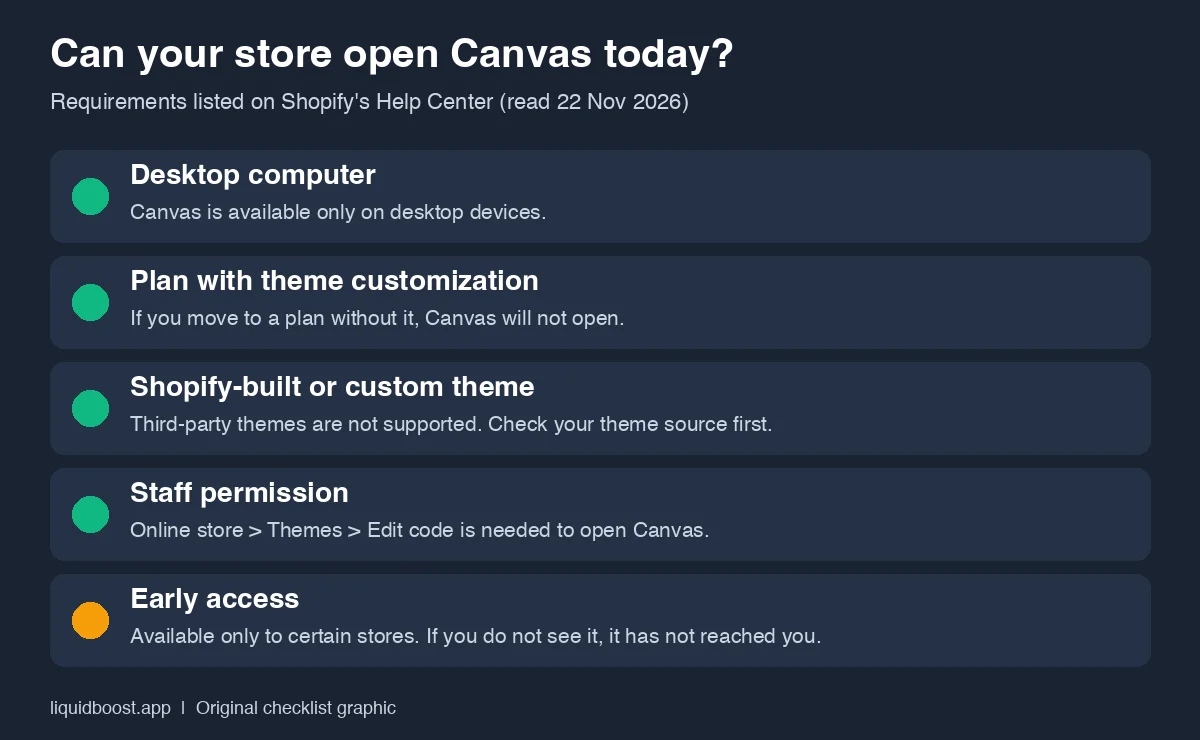
Maybe not yet. Shopify's Help Center lists 4 requirements: a desktop device, a plan that includes theme customization, a Shopify-built or custom theme, and the Online store > Themes > Edit code permission for staff. It also labels Canvas early access, available only to certain stores.
Check these before you plan any work. Shopify's "Requirements and considerations for using Canvas" page is the source for all of them.
Two of these catch people out.
Third-party themes are not supported. If you bought a premium theme from another developer, Canvas will not duplicate it. Shopify points you to its theme sources page to find out who built your theme.
Staff need the Edit code permission. A designer with only content access will not see Canvas, even if your store has it.
If Canvas is missing from your admin, it has not reached your store yet. Look under Online Store, then Themes, and try again in a few days. Do not hunt for workarounds.
How Do You Change Themes in Canvas Without Touching Your Live Store?
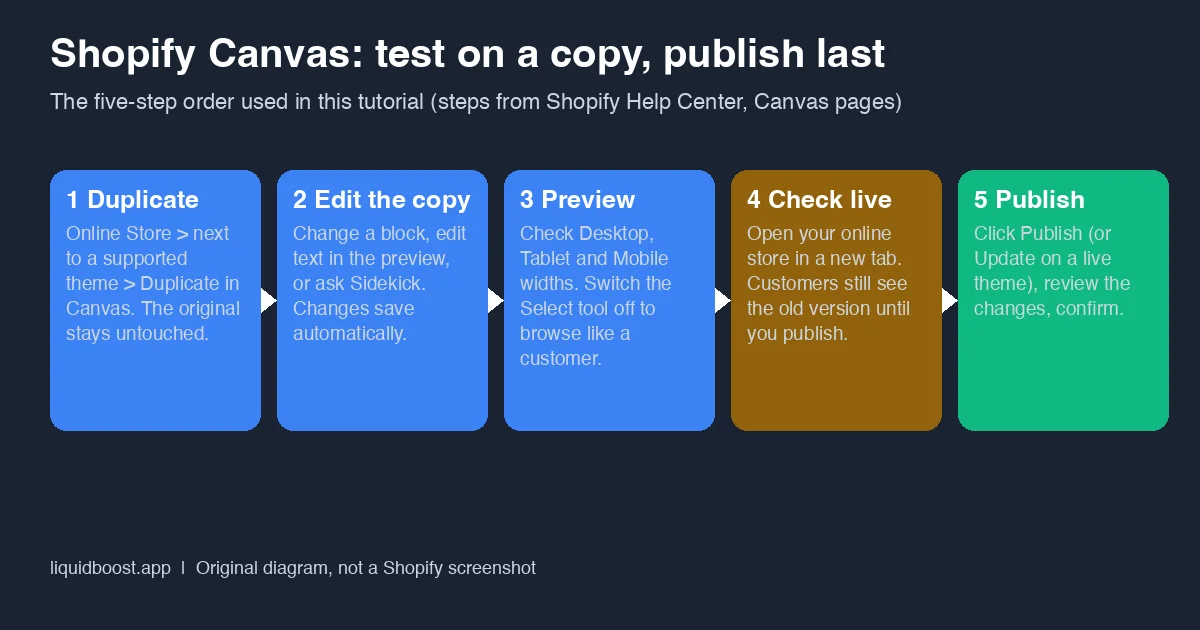
Duplicate your current theme in Canvas and edit the copy. Shopify's Help Center says the copy and the original are separate, so changes to one are not added to the other. Your customers see nothing new until you publish, which gives you a safe place to test.
Here is the exact path from Shopify's "Creating and customizing themes in Canvas" page.
- From your Shopify admin, go to Online Store.
- Next to the theme you want to copy, click the > menu, then Duplicate in Canvas.
- The copy opens in Canvas. The original stays in your theme library.
You can also click New and describe your brand to Sidekick, which builds a theme from your description and adds it as an unpublished theme. For an existing store, duplicating is the safer start.
Two cautions from Shopify matter here.
First, a theme you edit or create in Canvas opens only in Canvas. You cannot go back and edit it in the theme editor. Second, the copy and the original are now separate themes, so before you publish, make sure you are publishing the one with your latest changes.
Our recommendation: before duplicating, make a plain backup copy of your live theme in the normal theme library and leave it untouched. Our theme editing guide walks through that backup and the compatibility checks around it.
How Do You Make Your First Change in Canvas?
You have three ways to edit: ask Sidekick in the Work with Sidekick field, change a block's settings, or edit text directly in the preview. Shopify's Help Center says changes save automatically, so there is no save button, and customers see nothing until you publish.
Start with something small and easy to judge. A good first test is one block on one template, such as the text of an announcement or the image on your home page hero.
Ask Sidekick. Click a block in the preview if you want the change limited to it. Type your request in the Work with Sidekick field and submit. The Sidekick chat opens and makes the change.
Be specific. "Make the home page feel more premium" gives Sidekick too much room. "Change the hero heading to 'Free shipping over USD 50' and keep the same font" is something you can check in ten seconds. The prompt is our example, not a tested result.
Change a block's settings. Click the block, then adjust the settings shown first. Expand them to see everything available for that block.
Edit text in the preview. Click the text and type. Shopify notes that on some older themes you cannot edit text this way. Use the block's settings or ask Sidekick instead.
Change theme settings. Click the theme name in the top bar, then Theme settings. These apply across the whole theme, such as colors and typography, so one change can touch many templates. Treat each one as a bigger edit than it looks.
Does your product page still miss the trust signals top stores show? Canvas moves blocks around, but it will not hand you tested conversion code. Browse LiquidBoost's trust badge and urgency snippets, one-time purchase, 14-day money-back guarantee. See where trust badges belong.
How Do You Preview Canvas Changes and Check Mobile?
Use the preview width control to check Desktop, Tablet and Mobile, which are the 3 standard widths Shopify's Help Center lists, plus a custom pixel width if you need one. Shopify advises reviewing your changes at each width before you publish your theme.
This is the step most merchants skip, and it matters more in Canvas. Shopify says Canvas itself is available only on desktop devices. You edit on a big screen, but many of your customers will see the result on a phone.
Shopify's "Using and navigating Canvas" page describes the controls.
- Template overview: when Canvas opens, all templates show zoomed out. Click the width icon in the top bar to switch every template preview between Wide, Desktop, Tablet and Mobile.
- Preview a template: click the preview icon in the top bar or the template header to see it larger.
- Select tool: with it on, you can click blocks to edit. Click it again to browse the store like a customer, following links between templates.
- Different products: on a product template, click the URL path in the template header to preview a different product, and click the template name to see its variations.
Our recommendation is to make this a grid, not a glance. Check the same five templates at all three widths, every time.
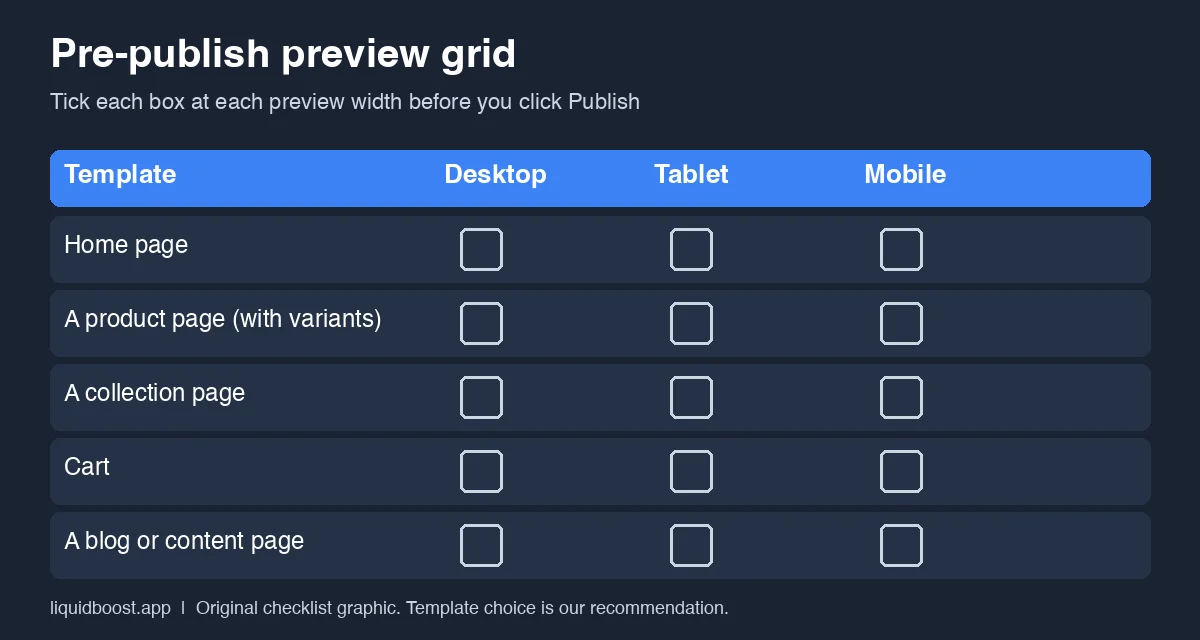
Then do one more check outside Canvas. Open your online store in a new browser tab and look at it as a customer. Shopify says that on a published theme your saved changes are displayed in Canvas but your customers keep seeing the old store until you click Update and then Publish changes. A new tab shows you what customers see right now.
A real phone is still the best final test. Canvas gives you widths, and our advice is to open the live page on a phone after publishing as well.
How Do You Undo a Change in Canvas?
It depends on who made the change. For a setting you changed by hand, press Ctrl+Z on a PC or Command+Z on a Mac. For a Sidekick change, ask Sidekick to change it back or restore an earlier version from Version history, because Sidekick clears your undo history.
Shopify's help page spells out the difference, and it is easy to get wrong. The keyboard shortcut only reverses manual setting changes. Before you use it, click an empty area of Canvas outside the setting control.
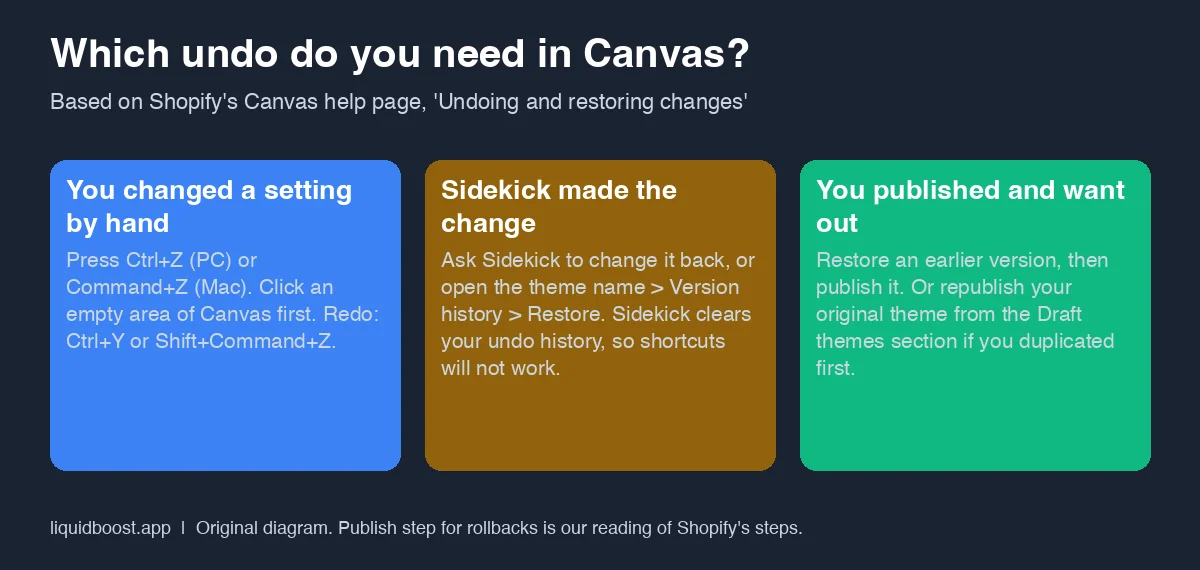
Here is the full picture, built from Shopify's "Undoing and restoring changes" section of its Canvas customizing page.
| What happened | How to reverse it | Watch out for |
|---|---|---|
| You changed a setting by hand | Ctrl+Z or Command+Z; redo with Ctrl+Y or Shift+Command+Z | Works only for manual setting changes |
| Sidekick made a change | Ask Sidekick to change it back, or use Version history | Sidekick clears your undo history, so you cannot undo it or anything before it |
| You want an earlier state | Theme name, then Version history, select a version, click Restore | Customers see the restored version only after you publish it |
Version history lists the edits in each version. The newest is marked Current version and the one you last published is marked Last published.
Here is a habit worth building. Before you ask Sidekick for a large change, glance at Version history so you know which version to return to. And if you duplicated first, your original theme is a full undo that Canvas cannot take away.
How Do You Roll Canvas Changes Out Gradually?
There are 2 kinds of gradual rollout. Shopify is rolling Canvas itself out to merchants over the coming days, so check your own admin. For your store, you can add a theme edited in Canvas to a Shopify rollout as a replacement for your main theme, instead of publishing it all at once.
Let us take the two separately.
Canvas reaching your store. Shopify's announcement says Canvas is "rolling out to merchants over the coming days," and the Help Center says it is early access and available only to certain stores. If you cannot see it, there is nothing for you to fix. Our Shopify Editions guide keeps a checked list of which Fall 2026 items are live and which are still "rolling out soon".
Your theme reaching customers. The Help Center says you can add a theme that you edited in Canvas to a rollout as a replacement for your main theme. Two limits apply: you cannot use a rollout to edit a Canvas theme, and you cannot open the theme from the rollout. To edit it, go back to Canvas.
How we would use that, as a recommendation and not a Shopify instruction:
- Finish and preview your Canvas copy at all three widths.
- Put it in a rollout instead of clicking Publish, so the switch is scheduled and not live the moment you finish.
- Watch your orders and checkout for a day before you treat it as done.
- Keep the original theme untouched until you are sure.
Shopify's pages in this research do not give the split percentages or traffic rules for a rollout, so we will not guess them. Open the rollouts page in your admin to see what your store allows.
One warning from Shopify about publishing directly. If your published theme has rollouts with active or planned theme changes, publishing a different theme removes those changes from the rollouts, and Shopify says the removed changes cannot be recovered.
What Can't Canvas Do Yet?
Several things. Shopify's Help Center lists 9 considerations for themes edited in Canvas, including no manual new blocks, no app blocks or embeds, no market-specific customization, no direct translation and no theme updates, and it excludes third-party themes. Check each against what your store depends on before you commit.
Shopify is open about this. Its announcement says "there are gaps we still need to close". The full list on Shopify's considerations page matters more than any feature tour, because the gaps are where you can lose work.
| Limit in Canvas | What it means for you |
|---|---|
| A Canvas-edited theme opens only in Canvas | You cannot switch it back to the theme editor |
| No theme updates for Canvas-edited themes | You maintain it from then on |
| You cannot download its theme files | No local copy of the edited theme |
| You cannot add a block manually | Ask Sidekick to add it |
| No adding or configuring app blocks and embeds | A duplicate keeps the original's app settings, and you cannot change or remove them in Canvas |
| No customizing for different markets | Plan your international stores separately |
| No direct translation | Use the Translate & Adapt app and select Default theme content |
| Older themes may not allow text edits in the preview | Use block settings or Sidekick |
| Metaobject templates are not listed in Jump to... | Find them another way |
The app block rule has a practical fix, straight from Shopify. To keep your original unchanged, duplicate the theme in the normal library first. In that copy, remove the app blocks and deactivate the app embeds you do not want, then click Duplicate in Canvas on that copy.
Where do code snippets fit?
LiquidBoost sells copy-and-paste Liquid snippets, so this is the question we get. Shopify's pages we read say you cannot add a new block by hand in Canvas, and they do not say whether you can paste Liquid into the code of a theme you edited in Canvas. That is unknown to us, and we have not tested it.
Our cautious order of work is to install any snippet in your original theme first, following the steps in our Shopify Liquid code examples, and confirm it works. Then duplicate that theme in Canvas for design changes. Check the copy afterward, because we cannot promise it will behave the same.
Native tools are still the right answer for many changes. If a color, font or layout setting exists, use it. For a longer comparison of routes, see our guide to editing Shopify themes and the Dawn customization tutorial.
Frequently Asked Questions
What is Shopify Canvas?
Shopify Canvas is a design surface in the Shopify admin that shows every template of your online store side by side. Shopify announced it on 1 October 2026. You can edit blocks and text yourself or ask Sidekick to make changes, and customers see them only after you publish.
Can I use Shopify Canvas on my phone?
No. Shopify's Help Center says Canvas is available only on desktop devices. You can still preview your theme at a Mobile width inside Canvas, one of 3 standard preview widths, and our advice is to open the live store on a real phone after you publish.
Does Shopify Canvas replace the theme editor?
Not yet. In its announcement Shopify says Canvas is not replacing the existing editor yet, and the Help Center says Canvas is optional. A theme you edit in Canvas opens only in Canvas, so keep a duplicate if you want a path back to the theme editor.
Can I undo a Sidekick change in Canvas?
Yes, but not with the keyboard shortcut. Shopify says Ctrl+Z or Command+Z reverses only manual setting changes, and a Sidekick change clears your undo history. Ask Sidekick to change it back, or open Version history, select an earlier version and click Restore.
Is Your Theme Ready for the Changes You Want Next?
Canvas speeds up layout work, but conversion still depends on tested pieces on the page. LiquidBoost snippets are one-time purchases with a 14-day money-back guarantee, so you can add trust and urgency elements to your original theme and test them before duplicating it in Canvas.
Pick the change you want on your product or cart page, add it to your original theme, then duplicate that theme in Canvas to polish the design around it. No developer needed for the snippet step.
Browse LiquidBoost's snippet marketplace →
One-time purchase per snippet. No monthly fees. 14-day money-back guarantee.
Sources read on 22 November 2026. Shopify's Help Center pages, as plain addresses because Shopify's help site blocks automated link checks: help.shopify.com/en/manual/online-store/themes/canvas, plus its /requirements, /navigating and /customizing pages. Launch details come from Shopify's Canvas announcement and the Fall 2026 Edition.